For general billing focused on a period/day, the invoice view is opened from the main menu on the left side > Billing.
In this screen, you get an overview of:
- Orders ready for invoicing
- Orders that have been invoiced/credited
- Warnings about missing price and RFI deviations
- Warnings on order lines with "Delivered" status that have a return time before the end of the billing period
- Order lines missing RFI
- Invoices that have not been sent
- E-invoices that have not been sent to the customer
- History of invoice sending by email
- Filtering by customer, projects, order number, and invoice number
- Filtering by department, salesperson, and completed orders/periodic
It is possible to sort ascending/descending on the selection by clicking directly on the relevant column (header) and to export reports to Excel.
The invoice screen can also be opened by clicking the "Invoice" button inside the order screen.
You then enter the invoice screen with the filter set to the order number. You can invoice or see what has been invoiced for this specific order. Here you can display what has been invoiced and what is pending invoicing in the same screen:
The billing rule determines the date shown in the "For invo." field (first column).
The choice of billing frequency is shown in the image below:
- In the first option, you select which day the contact's order should be invoiced, as well as the frequency (number of month(s)). To always invoice on the last day of the month, select day 31 every 1 month (as shown in the image).
- With option number 2, the order will appear for invoicing twice per month
- Postpay: the 15th and the last day of the month.
- Prepay: the 1st and the 16th day of each month.
- In the last option, you can set the order to be invoiced at a given interval.
Inside the order, you can click "Close order - final invoice" or "Postpone 1st billing period":
Close order - final invoice: The program creates a final invoice that is added to invoicing the same day. The criteria for selecting this is that all order lines must be returned and RFI must be checked.
If "Return controlled status required to close order" is selected, all return receipts must have Return controlled status for the order to be closed.
Postpone 1st billing period: Select this if you start an order at the end of a billing period and want the last days of the period to appear in the next billing period.
This only applies to the first billing period.
Missing RFI:
Before you start invoicing, we recommend checking "Missing RFI" under "Other" (top right side). By clicking the link, you get an overview of orders with lines missing RFI so you can check them per order.
You have the option to hide lines that are correct to clean up the list.
By clicking "show hidden lines," you get an overview of lines you have hidden.
The overview of Missing RFI can also be found under "Overview > Follow-up".
Here you also find "Order-invoice follow-up" with several queries designed to help you catch the following:
- Uncompleted orders where all rental products have been returned or checked
- Completed orders that have order lines with RFI and 0 in Quantity
- Orders that have order lines with RFI and 0 in retail price.
- Accessories not returned
- Orders ready to finish
We recommend checking this overview regularly.
Here, it is also possible to hide what is correct (intentionally done).
Period:
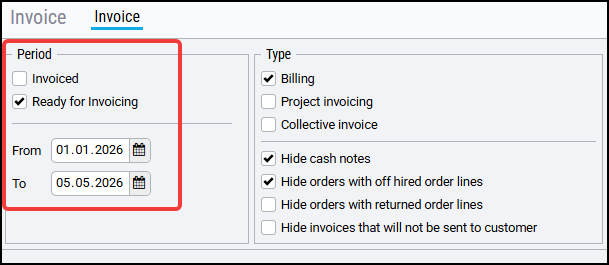
You can choose between "Invoiced" or "Ready for invoicing". The default is "Ready for invoicing".
The billing period (up to date) is always set to today's date when you enter the invoice screen.
This date must be changed to the last day of the period you want to invoice, e.g., 31/03/26 when invoicing March.
The "From" date is a setting retrieved from Settings > Standard setup > Invoice.
It is recommended to set the "from" date back in time so that lines that may appear for invoicing at a later time are included, such as consumption of sales goods, cleaning, and maintenance after the return date.
Type:
- Billinh: Regular periodic invoicing
- Project invoicing: Consolidated invoice per project
- Collective invoice: One invoice per period for all orders to the customer
The default selection is "Billing" when opening the invoice screen.
Under "type," you can choose to hide:
- Cash note: mostly created in the direct invoice screen when the customer pays by card/cash. Many therefore choose to hide cash notes when invoicing periodically.
- Orders with off hired order lines: you do not want to invoice the order(s) before the products are returned and maintenance, service, and other costs are added to the order.
- Orders with returned order lines: if you use the status "Return controlled," you do not want to invoice the order(s) before the return receipts have this status. Maintenance, service, and other costs have then been added to the order. "Return controlled" is an extra status you can activate under "Settings > Default register > Offer/Order".
- Invoices that will not be sent to the customer: remove the checkmark on invoices/credit notes that should not be sent to the customer in the far-right column. If you choose to hide invoices that should not be sent to the customer, they disappear from the list.
In "Settings > Default setup > Invoice," you can check/uncheck what you want to hide.
The choices then appear as default when you open the invoice screen, but they can be changed in the billing screen
Filter:
Here you can search by customer, project, order number, and invoice number.
You can easily reset your filtering by clicking the "reset button" at the top right.
Follow-up on invoice sending ("Invoiced" and "Other"):
When you want to follow up on invoice sending, you can filter by the following status: All, Not sent, Sending, Sent.
The desired status can be combined with various filters under "Other".
Here you check if there might be e-mail invoices that have not been sent to the customer and invoices to be sent by mail to the customer that have not been printed.
You also find links to "invoices not sent" to the right in the invoice screen.
The counter (number in parentheses) shows the number of invoices not sent in the period displayed when you open the invoice screen (default from time to today's date).
Other filters under "Other":
- Department: here you can filter by the desired department
- Salesperson: here you can filter by the desired salesperson
- Invoice type: here you can filter by short-term rental (completed orders) or long-term rental (periodic)
Invoiced orders (To be invoiced)
If you have activated order line extension under Settings > Default setup > Offer/Order, the extension runs overnight. You should therefore wait to invoice until the extension has run. For example, if you are invoicing the entire month of August, you should wait to invoice until September 1st to include the last day of the month. If you invoice before the order line extension has run, the days not yet extended will appear on the next invoice.
What must be done before invoicing:
- Select the correct period: The "From date" should be set a few months back in case additional items have appeared for invoicing after a monthly invoicing. The "To date" you set indicates that you will invoice up to and including this date. If invoicing May, set the "To date" to 31/05 (see image below).
- Set the correct invoice date: The system automatically selects today's date, but it is possible to override this. The invoice date determines the period the revenue is recorded for, regarding export to accounting and basis for reports. The invoice date should therefore be set to the month the revenue belongs to. If you are in April and invoicing orders that should be recorded in May, the invoice date must be set to a day in May, for example, 31/05.
- Check warning triangles before invoicing: Warning triangles appear for missing price, RFI deviation, and order lines in rental that have a return time before the end of the billing period.
- Select the correct type of invoicing: Choose whether to invoice periodically, project invoicing, and consolidated invoicing at once or separate them. You can also filter by department, salesperson, and completed orders/periodic.
Invoice date warning
Activate warning on invoice date under Settings > Default setup > Invoice:
You will then get a reminder to set the correct invoice date every time you click the "Invoice/Credit" button:
You have the following options when invoicing:
- Invoice one order at a time: mark the order you want to invoice by selecting the white box on the left side. If you want to check the order before invoicing, you can click on the order number (which is a link). This opens the order in a new tab. The line is then marked in red text to indicate that you may have made a change that could have altered the invoicing basis. You must therefore click the "Update" button before you can invoice. The "Invoice" and "Invoice + send" buttons are grayed out until you click the "Update" button. The checkmark you set on the selected line(s) is remembered after updating, so you can click directly on the "Invoice" or "Invoice + send" button.
- Invoice all: If you choose "Invoice all," all orders in the screen will be invoiced. You can choose "Invoice all and send" if you want to send/print the invoices immediately. The print and sending screen will open.
Invoice all without warning: If you choose this, you invoice all orders that have no warning. You can then check the warnings before invoicing the rest. You can choose "Invoice all without warning and send" if you want to send/print the invoices immediately. The print and sending screen will open.
Printing and sending invoices and credit notes:
- Click "Print (directly)" if you have activated direct print and want to print the invoice. Contact support if you want to activate this. If you have not activated direct print, click "PDF" to print the invoice.
- Click "Send email" to send an electronic invoice
- Select "One consolidated email per customer" if you want invoices to the same email address to be sent per customer
When you click the "Send email" button, the email status changes to "Sending," and you can then close the screen. Invoice sending occurs approximately every 10 minutes, so the status does not change to "Sent" immediately.
Email history:
When you have sent an invoice by email, you can click the link in the "Status" column for more information about the sending.
Here you can see, among other things, the date and time the invoice was sent and the recipient it was sent to.
Communication history can also be found:
- In the order screen (print button, packing and return slip)
- Customer card (separate tab)